
Boards and tasks
Plan work on Kanban boards with columns, cards, due dates, subtasks and comments, then drop a live board or task into any note.
Boards give you a Kanban view of your work. They live alongside your notes, and you can embed any board or task inside a note.
Open the Board view
Click Board under Quick Access in the sidebar. The first time, you’ll see No boards yet.
Create a board
- Click New board.
- Type a Board name and click Create.
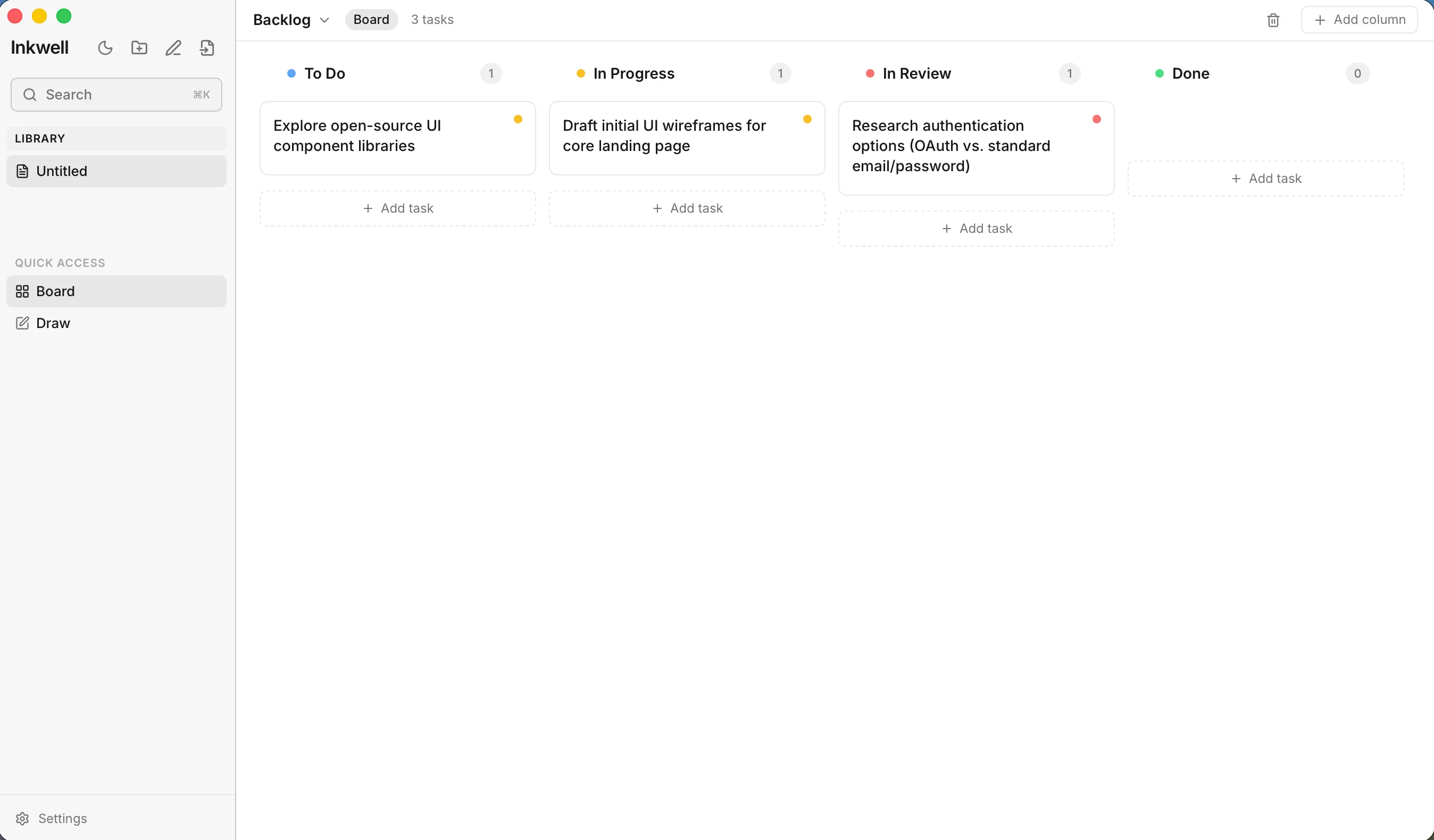
A new board starts with four columns: To Do, In Progress, In Review and Done.
Use the board name at the top (with the small arrow) to switch between boards or to create another one. The top bar also shows how many tasks the board has.
Work with columns
- Click Add column and type a Column name… to add one.
- Right-click a column to Rename column or Delete column.
- Drag a column by its header to reorder it.
Add and move tasks
- At the bottom of a column, click Add task.
- Type a Task title… and press EnterEnter (or click Add). Press EscEsc to cancel.
- Drag a card to another column, or to a new position in the same one.
Each card shows a coloured dot for its priority (red for high, amber for medium, green for low), its tags, the assignee, the due date, and a small progress bar when it has subtasks.
Edit a task
Click a card to open the task drawer. From there you can:
| Field | What you can do |
|---|---|
| Title | Click the title to rename it. |
| Status | Pick the column the task belongs to. |
| Priority | Choose High, Medium or Low. New tasks start as Medium. |
| Assignee | Type a name. It’s free text, so you can use anyone’s name. |
| Due Date | Pick a date, or leave it as No date. |
| Details | Write notes about the task in markdown. / commands work here, and @ links to a note. |
| Subtasks | Click Add a subtask… and tick them off as you go. |
| Tags | Type a tag name… to add one; remove it with the small button on the tag. |
| Comments | Write under Leave a comment…. |
Close the drawer with EscEsc or the close button. To delete a task, use the trash button in the drawer and confirm Delete task.
To delete a whole board, click the trash button in the top bar and confirm Delete board. This permanently deletes the board and all of its tasks.
Put a board or task inside a note
- In the editor, type
/boardor/task. You can also click Insert board or task in the floating toolbar. - In Insert board or task, choose Board or Task at the top, then search for the one you want.
- Click it.
By default a board appears as a live Kanban view and a task as a live card. They always show the latest state, so there’s nothing to update by hand. Tick Insert as inline link instead of an embedded board (or a task card) if you’d rather get a simple link.
Click Open board on an embedded board to jump to it in the Board view. Use Remove from note to take an embed out of the note; this doesn’t delete the board or task.
Under the hood an embed is a short code block holding the id:
```board
board-1234567890
```Where boards are stored
Boards and tasks are saved in the vault’s hidden .inkwell folder, not in your .md files. See Vaults and your files. In a shared vault, boards are shared with your team.