
Writing in the editor
Format text, use slash commands, switch between Normal and Markdown mode, and move around long notes.
inkwell’s editor is built on CodeMirror 6. It reads and writes plain markdown, but looks like a finished document while you type.
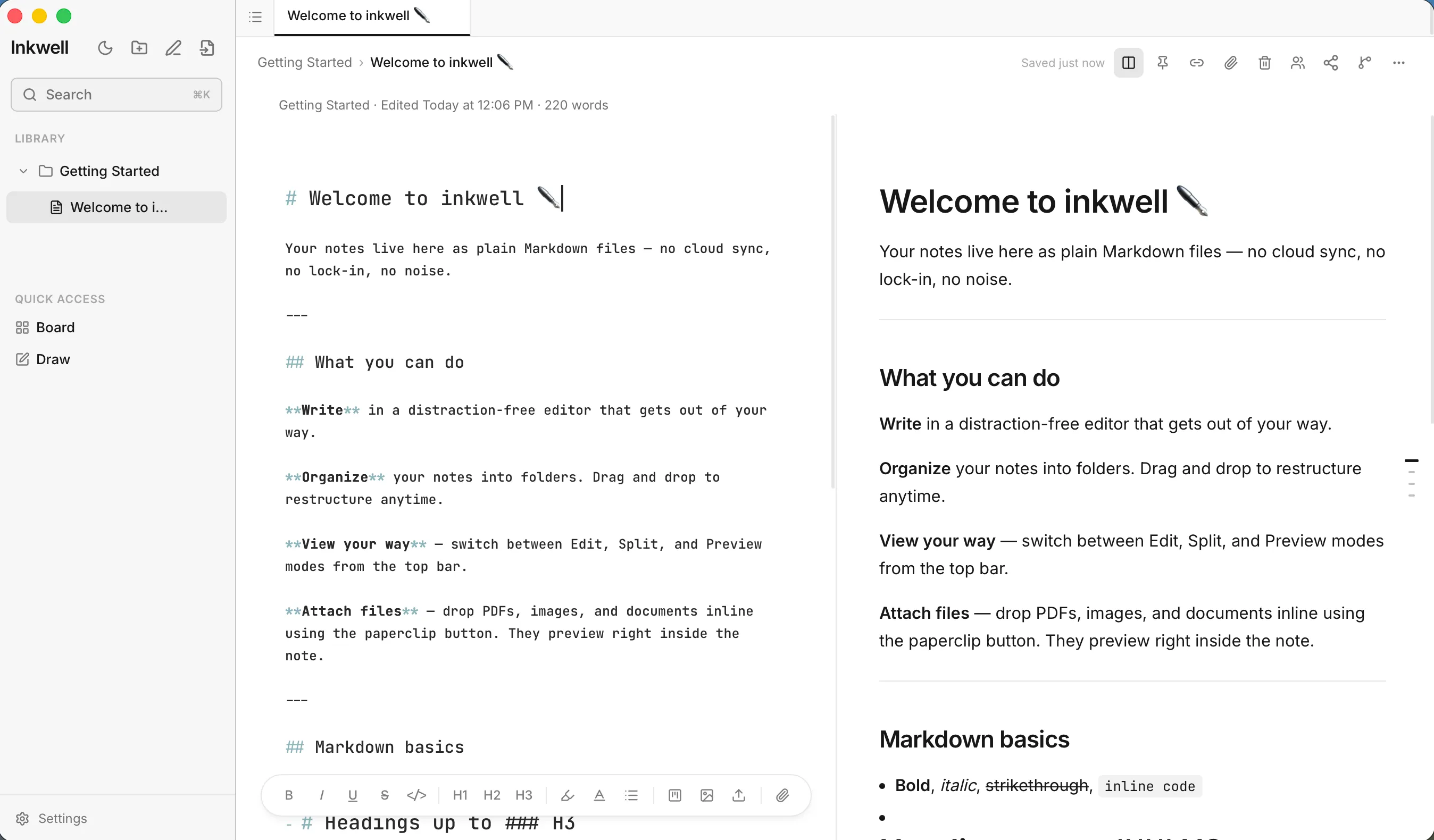
Choose Normal or Markdown mode
Every note can be shown in one of two modes.
| Mode | What you see |
|---|---|
| Normal | A single pane. Markdown symbols such as # and ** are hidden, so the note looks formatted. Move the cursor onto a line and its symbols appear so you can edit them. |
| Markdown | Two panes side by side: the raw markdown source on the left and a rendered preview on the right. Drag the divider between them to resize; the panes scroll together. |
To switch, click the Switch to Markdown mode button (two columns icon) in the top-right of the note. Click it again to go back to Normal mode.
New notes open in Normal mode. To change that default, go to Settings → Editor → Default note mode.
Format text
Select some text, then use the floating toolbar at the bottom of the editor, or use a shortcut.
| Format | Toolbar button | Shortcut | Markdown |
|---|---|---|---|
| Bold | B | ⌘BCtrl+B | **bold** |
| Italic | I | ⌘ICtrl+I | _italic_ |
| Underline | U | ⌘UCtrl+U | <u>underline</u> |
| Strikethrough | ⌘⇧SCtrl+Shift+S | ~~strikethrough~~ |
|
| Inline code | </> |
– | `code` |
| Headings | H1, H2, H3 | – | #, ##, ### |
Using a format twice on the same text turns it off again. If you click a button with nothing selected, inkwell adds the markers and leaves the cursor between them.
Highlights and colours
The toolbar has three colour menus. Each offers eight colours (gray, red, orange, yellow, green, blue, purple and pink) and a button to clear the colour:
- Highlight text wraps the selection in a coloured highlight.
- Text color changes the colour of the selected text.
- Bullet color changes the bullet or number of the selected list items.
You can also write a plain highlight yourself with ==double equals==.
Insert blocks with / commands
On an empty line, type / to open a menu of things you can insert. Keep typing to narrow the list, then press EnterEnter to choose one.
| Command | Inserts |
|---|---|
/heading1, /heading2, /heading3 |
A large, medium or small heading |
/bullet |
A bulleted list |
/numbered |
A numbered list |
/todo |
A to-do item with a checkbox |
/quote |
A blockquote |
/code |
A fenced code block |
/table |
A customisable table, like Notion |
/mdtable |
A plain three-column markdown table |
/highlight |
==highlighted text== |
/divider |
A horizontal rule |
/bold, /italic |
Bold or italic markers with the cursor inside |
/video |
A video embed from YouTube, Vimeo or Loom |
/board |
A Kanban board from your Board view |
/task |
A single task from a board |
/brainstorm |
A live, read-only outline of a brainstorm |
/chart |
A chart: pick a type and fill in data |
The slash menu only opens when / is the first thing on a line.
Lists and to-dos
Write - [ ] Buy milk (or use /todo) and the box becomes a clickable checkbox. Click it to tick it off; inkwell changes [ ] to [x] in the file for you.
Code blocks
Fence code with three backticks and name the language after them. inkwell colours it to match your theme:
```js
const greeting = "hello";
```
Mention another note
Type @ and start typing a note’s title. Pick it from the list and inkwell inserts a link to that note and records it on the Links panel. Hold ⌘Ctrl and click a mention to jump to that note.
Expand shortcuts with abbreviations
Type a trigger character (: by default) followed by a keyword and inkwell expands it:
| Type | You get |
|---|---|
:today |
Today’s date, like 2026-05-14 |
:tomorrow |
Tomorrow’s date |
:nextweek |
The date seven days from now |
:nextmonth |
The same date next month |
:now |
The current time, like 14:30 |
You can add your own, and change the trigger, in Settings → Abbreviations. See the settings reference.
Add images and files
Paste an image straight into a note, or use the toolbar’s Insert image from URL, Upload image from computer and Attach file or document buttons. See Attachments and media.
Find text in a note
- Press ⌘FCtrl+F to open Find in note… at the top of the editor.
- Type what you’re looking for. Matches are highlighted.
- Press EnterEnter for the next match or ⇧EnterShift+Enter for the previous one.
- Press EscEsc to close it.
To search across every note, use vault search instead.
Jump around with the outline
Notes with headings get a slim outline along the right edge: one bar per heading (levels 1 to 3). The bar for the section you’re reading is highlighted. Hover a bar to see the heading’s name, and click it to scroll straight there.
Edit with Vim keys
Prefer modal editing? Turn on Settings → Editor → Vim mode to use Vim keybindings, including motions and : commands.
Undo and redo
⌘ZCtrl+Z undoes, and ⌘⇧ZCtrl+Shift+Z redoes.