
Quick capture
Jot down a note from anywhere on your computer with a global shortcut, without opening the main window.
Quick capture is a small pop-up for ideas that can’t wait. It works even when inkwell’s window is hidden.
Capture a note
- Press ⌘NCtrl+N from any app. A Quick Note window opens in the middle of the screen and stays on top of other windows.
- Type your note. It supports markdown, including the same
/commands as the main editor. - Press ⌘EnterCtrl+Enter, or click Save.
The window briefly shows Saved and closes. Press EscEsc to close it without saving.
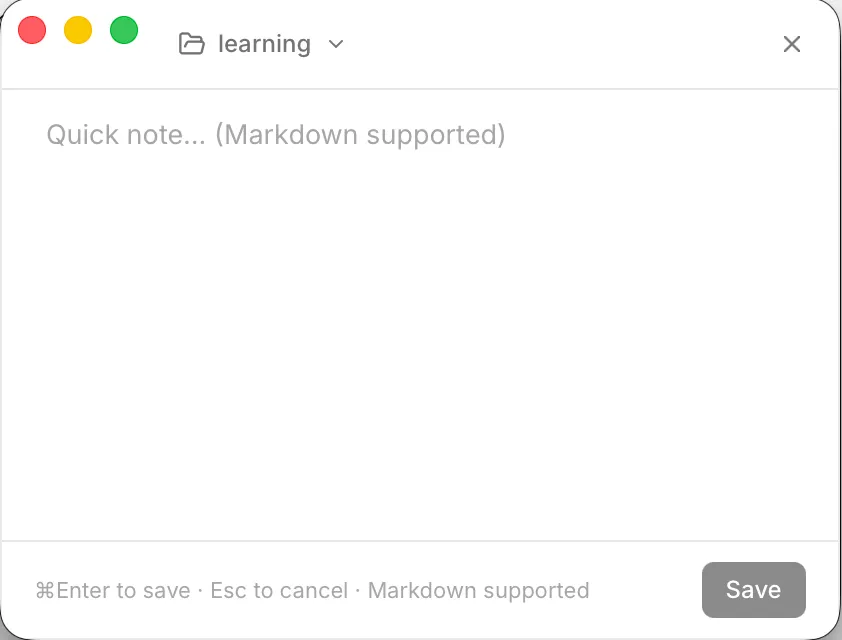
Choose where it goes
The name at the top-left of the window is the vault your note will be saved in. By default it’s the vault you last used.
- Click the name to pick another vault from your recent vaults.
- Choose Choose another folder… to use any folder.
How your note is saved
Captured notes land in a folder called Quick Notes inside the chosen vault. If the folder doesn’t exist, inkwell creates it. Each note is an ordinary .md file:
- The title is the first
# Headingif you wrote one, otherwise the first line (up to 80 characters), otherwise “Quick Note”. - The file name is the title plus a timestamp, for example
buy-milk-1768473000000.md, so nothing is overwritten.
You don’t need the vault to be open in the main window, so you can capture into one vault while working in another.
Open the pop-up from the menu bar
inkwell puts an icon in your menu bar (macOS) or system tray (Windows and Linux). Click it for:
| Item | What it does |
|---|---|
| Open inkwell | Brings the main window forward. |
| New Quick Note | Opens the capture pop-up. |
| Quit inkwell | Closes the app completely. |
If the shortcut doesn’t work
⌘NCtrl+N is registered system-wide. If another app has already claimed it, inkwell can’t register it. Use the tray icon instead, or free up the shortcut in the other app. See Troubleshooting.