
Themes and appearance
Pick one of ten built-in themes or make your own, switch between light and dark, and choose any installed font.
inkwell looks the way you want it to. Choose a theme, set the font, and on macOS let the desktop show through the window.
Choose a built-in theme
- Open Settings at the bottom of the sidebar.
- Go to Themes.
- Click a theme card. It applies straight away.
Themes are grouped under Dark and Light. The active theme’s name and description are shown at the bottom of the window.
- Midnight · darkWarm dark with amber glow
- Parchment · lightWarm cream with golden ink
- Ink · darkDeep dark with steel blue
- Dusk · darkIndigo night with soft violet
- Forest · darkDeep green with sage light
- Gruvbox · darkRetro groove with warm earth tones
- Sepia · lightAged paper with terracotta
- Fog · lightCool silver with slate blue
- Graphite · lightGrayscale black & white, Notion-style
- Onyx · darkGrayscale dark, Notion-style
The six dark themes are Midnight, Ink, Dusk, Forest, Gruvbox and Onyx. The four light themes are Parchment, Sepia, Fog and Graphite. Syntax colours in code blocks follow the active theme automatically.
Switch between light and dark
The sun or moon button at the top of the sidebar, and Settings → Appearance → Mode (Dark / Light), flip between a dark and a light theme. They don’t have a separate light/dark setting of their own. Instead, inkwell switches to the last light theme you used, or the last dark one.
If you’ve never picked one, light mode is Parchment and dark mode is Midnight.
Make your own theme
- In Settings → Themes, click New theme under Custom (or Create your first theme).
- Type a Theme name….
- Choose Dark or Light. This sets the starting colours and how the app treats the theme.
- Set the colours. For each one, click the swatch to open a colour picker, or type or paste a hex value such as
#c07840and press EnterEnter. - Watch the live preview at the top, and the app itself, update as you go.
- Click Save theme, or Cancel to discard it.
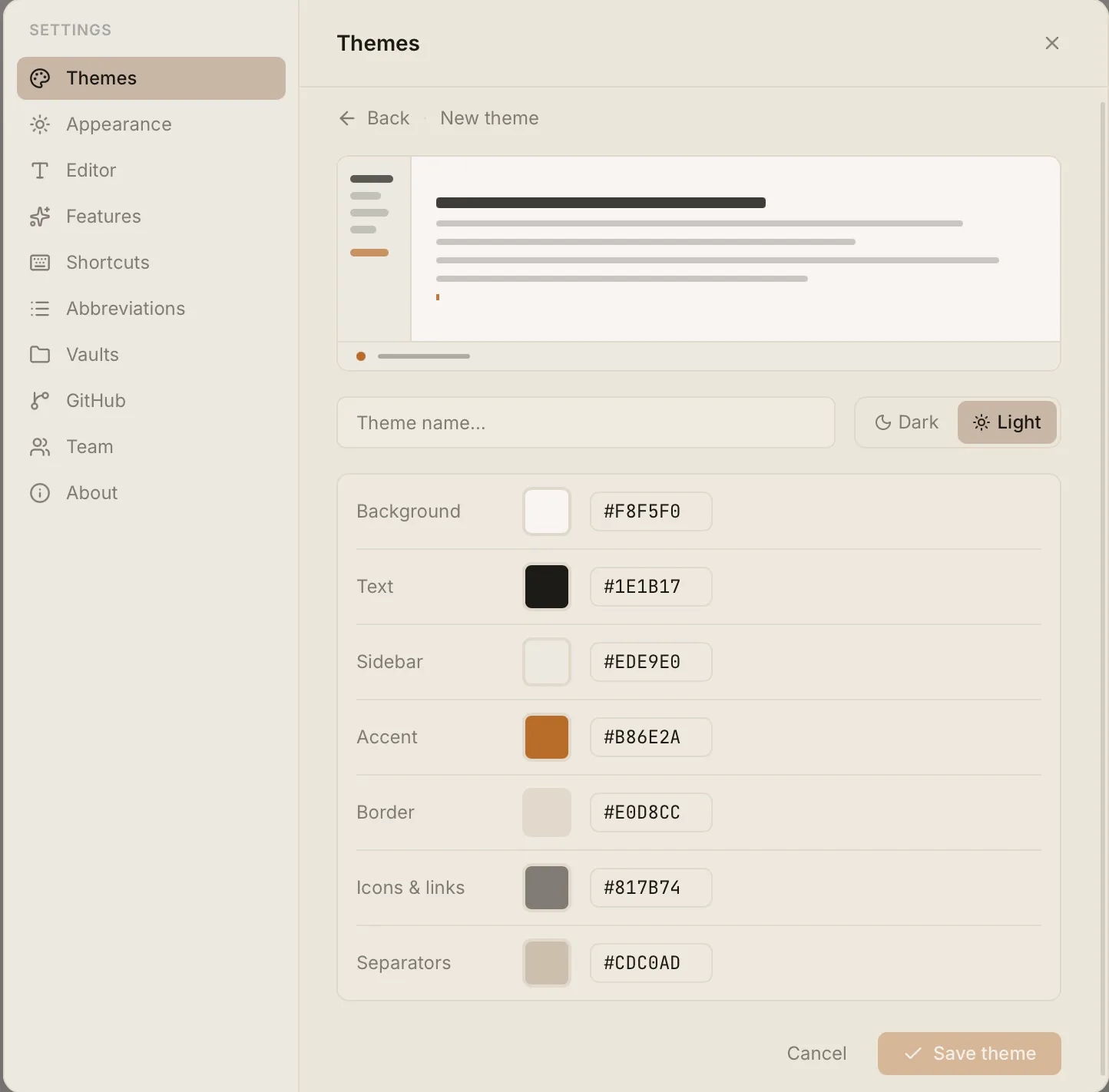
| Colour | What it controls |
|---|---|
| Background | The main editor area. |
| Text | Main text colour. |
| Sidebar | The sidebar and note list. |
| Accent | Buttons, links, the cursor and highlights. |
| Border | Thin dividers. |
| Icons & links | Secondary text and icons in the sidebar, and Settings links. (Optional.) |
| Separators | The stronger lines between the sidebar and note list. (Optional.) |
The last two are optional. If you leave them alone, inkwell works them out from your other colours. Set them only if you want a specific look.
Custom themes appear in the Custom group. Hover one to Edit or Delete it. Back leaves the editor without saving.
Pick a font
- Go to Settings → Editor.
- Click Font family. A searchable list opens.
- Choose from Built-in fonts (Inter, System UI, Georgia, Merriweather, JetBrains Mono) or any font under Installed fonts. Type in Search fonts… to filter the list.
You can also change Font size (Small 13px, Default 15px, Medium 17px, Large 19px) and Line height (Compact, Default, Relaxed, Double). A preview shows your choices.
Frosted-glass window (macOS)
On a Mac you can let the desktop show through inkwell:
- Settings → Appearance → Glass sidebar affects the sidebar.
- Glass body affects the note list and editor.
- Glass intensity (0–100%) appears once either is on and controls how see-through it is.
These options are labelled macOS and don’t do anything on Windows or Linux.