
Organising notes
Group notes in folders, rename and reorder them, pin favourites, and choose between a note list and tabs.
Folders in inkwell are real folders on your disk, so the way you organise notes in the sidebar is exactly how they’re laid out in Finder or Explorer.
Create a note
- Click New note (the pen icon) at the top of the sidebar to create a note at the top level of your vault, shown as Library.
- To create a note inside a folder, right-click the folder and choose New note, or click the + that appears when you hover it.
Press ⌘⇧NCtrl+Shift+N to create a note at the top level from the keyboard, wherever you are in the app.
Create a folder
- Click New folder (the folder icon) at the top of the sidebar, or press ⌘⇧FCtrl+Shift+F.
- Type a Folder name.
- Choose where it should live: Library (root) or any existing folder.
- Click Create.
If a folder is already selected, the button reads New subfolder and that folder is pre-selected as the parent.
The keyboard shortcut is quicker but skips step 3: it asks only for a name and creates the folder inside the folder you have selected (or at the top level if none is).
Rename a note or folder
Double-click it in the sidebar, or right-click and choose Rename. Type the new name, then press EnterEnter to save or EscEsc to cancel.
Renaming a note changes its first heading and its file name together. Renaming a folder renames the folder on disk.
You can also rename a note by clicking its title at the top of the editor.
Move things around
Drag and drop works on both notes and folders:
| Drag… | Drop it… | Result |
|---|---|---|
| A note | On a folder | The note moves into that folder. |
| A note | Above or below another note | The note is placed there. |
| A folder | On another folder | The folder is nested inside it, with everything it contains. |
| A folder or note | On the Library heading or the empty space under the list | It moves back to the top level. |
Hold a dragged item over a collapsed folder for a moment and it opens by itself. The drop target is highlighted as you move, and a label shows where the item will land.
You can also drag notes from the note list onto a folder.
Select several notes
- ⌘Ctrl + click adds or removes a single note from the selection.
- ⇧Shift + click selects everything between your last click and this one.
While several notes are selected a bar at the top of the sidebar shows N notes selected with a Delete button. Drag the selection to a folder to move them all at once.
Pin notes
Click the pin icon at the top of a note to pin it. Pinned notes also appear in a Pinned list at the top of the sidebar. Click the pin again (Unpin) to remove it.
Delete notes and folders
Right-click and choose Delete note or Delete folder, click the bin icon on a note, or select notes and press DeleteDelete. inkwell always asks you to confirm first.
Notes you opened with Open file… are different. They show Remove from library instead of delete, and the file on disk is never touched.
Note list or tabs
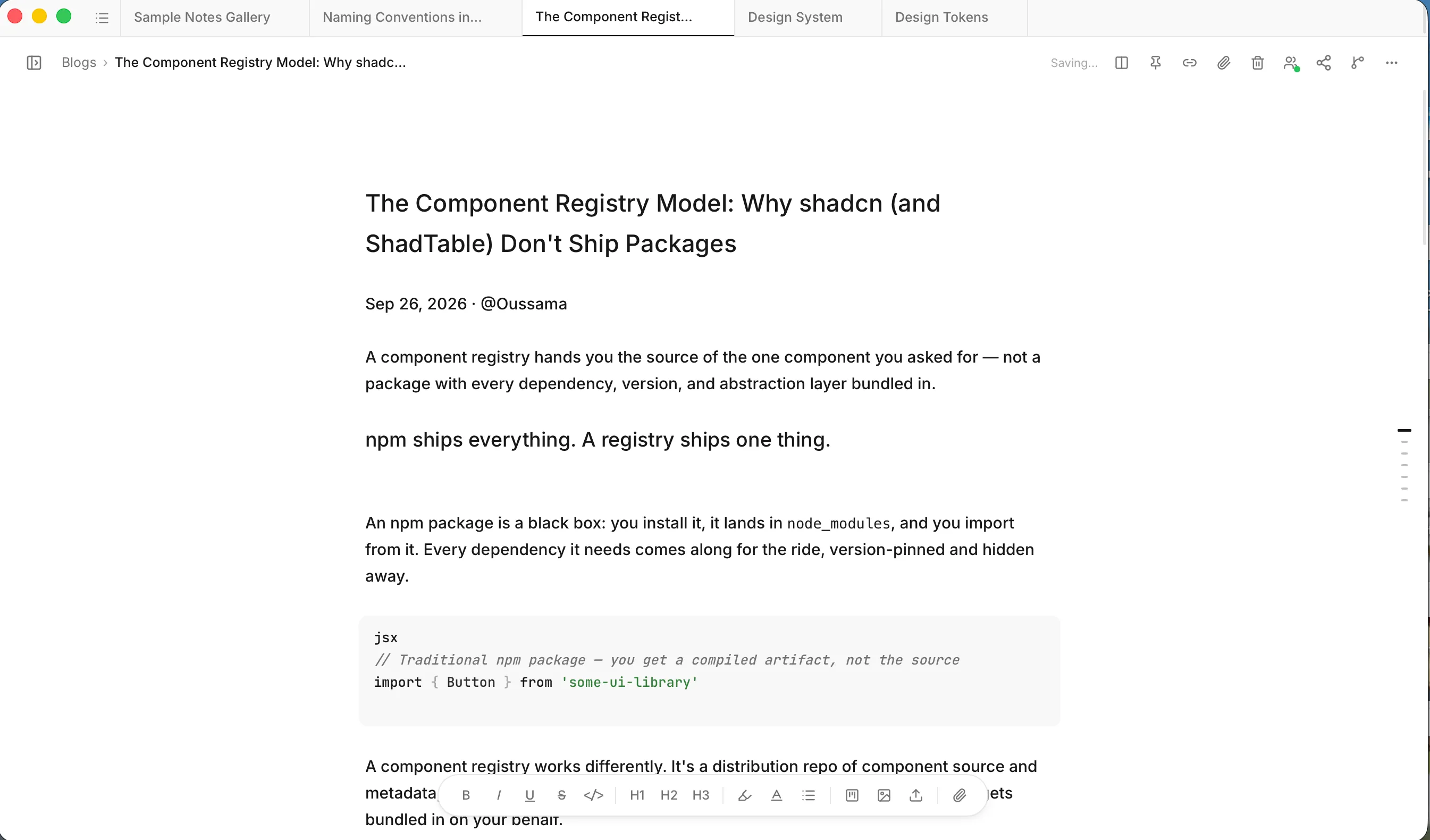
inkwell can show your notes two ways:
- List. A column next to the sidebar lists the notes in the folder you picked (Unfiled for the top level). Sort it by Date or Name.
- Tabs. Open notes sit as tabs along the top of the editor. Close a tab with its ×.
In the list’s header, click Switch to open tabs to change to tabs. In the tab bar, click Show note list (the list icon) to switch back.
Tags
Each note can carry tags in its frontmatter (for example tags: [project, ideas]). Searching also looks through tags. See Vaults and your files.