
Search
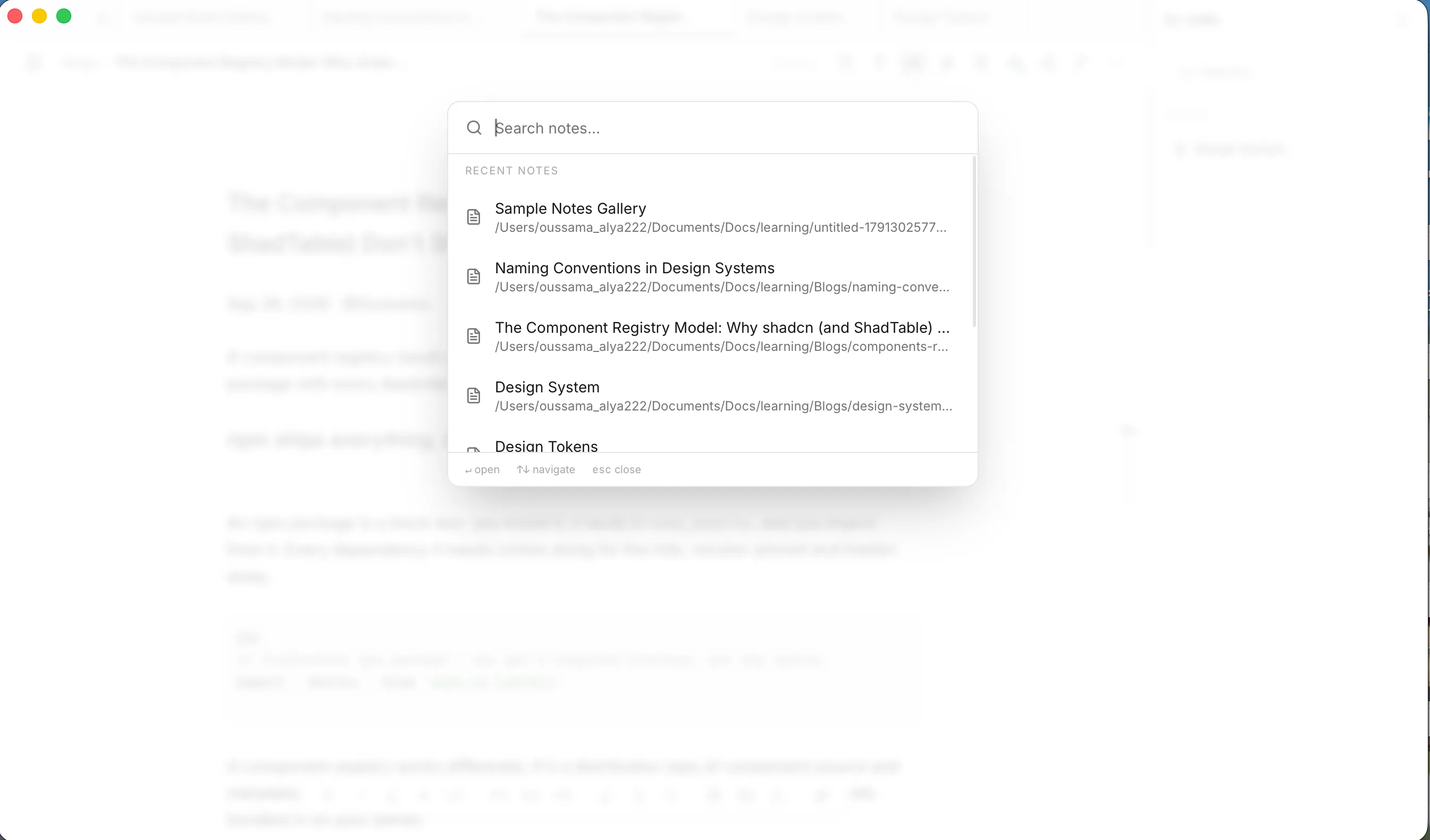
Find any note in your vault by title, content or tag, from anywhere in the app.
Search looks across every note in your open vault at once.
Search the whole vault
- Press ⌘KCtrl+K, or click the Search box near the top of the sidebar.
- Start typing in Search notes….
- Click a result to open that note. The search window closes.
Press EscEsc or click outside the window to close it without picking anything.
Each result shows the note’s title, with your search words highlighted, and the path of its file.
What gets searched
A note matches if your text appears in any of these (capital letters don’t matter):
- its title
- its content
- its tags
With nothing typed, the window shows Recent Notes so you can jump straight in. When nothing matches, it says No notes found.
Tips
- Search matches the exact text you type, so use a distinctive word rather than a full sentence.
- To search inside a single long note, use ⌘FCtrl+F instead. See Find text in a note.
- Search covers the vault you currently have open. To look in another vault, switch to it first.
- Want a different shortcut? Change it in Settings → Shortcuts.