
Linking notes
Connect a note to other notes and boards, jump between them, and mention notes right in your writing.
Notes rarely stand alone. inkwell lets you link a note to other notes and boards so related work is one click away.
Open the Links panel
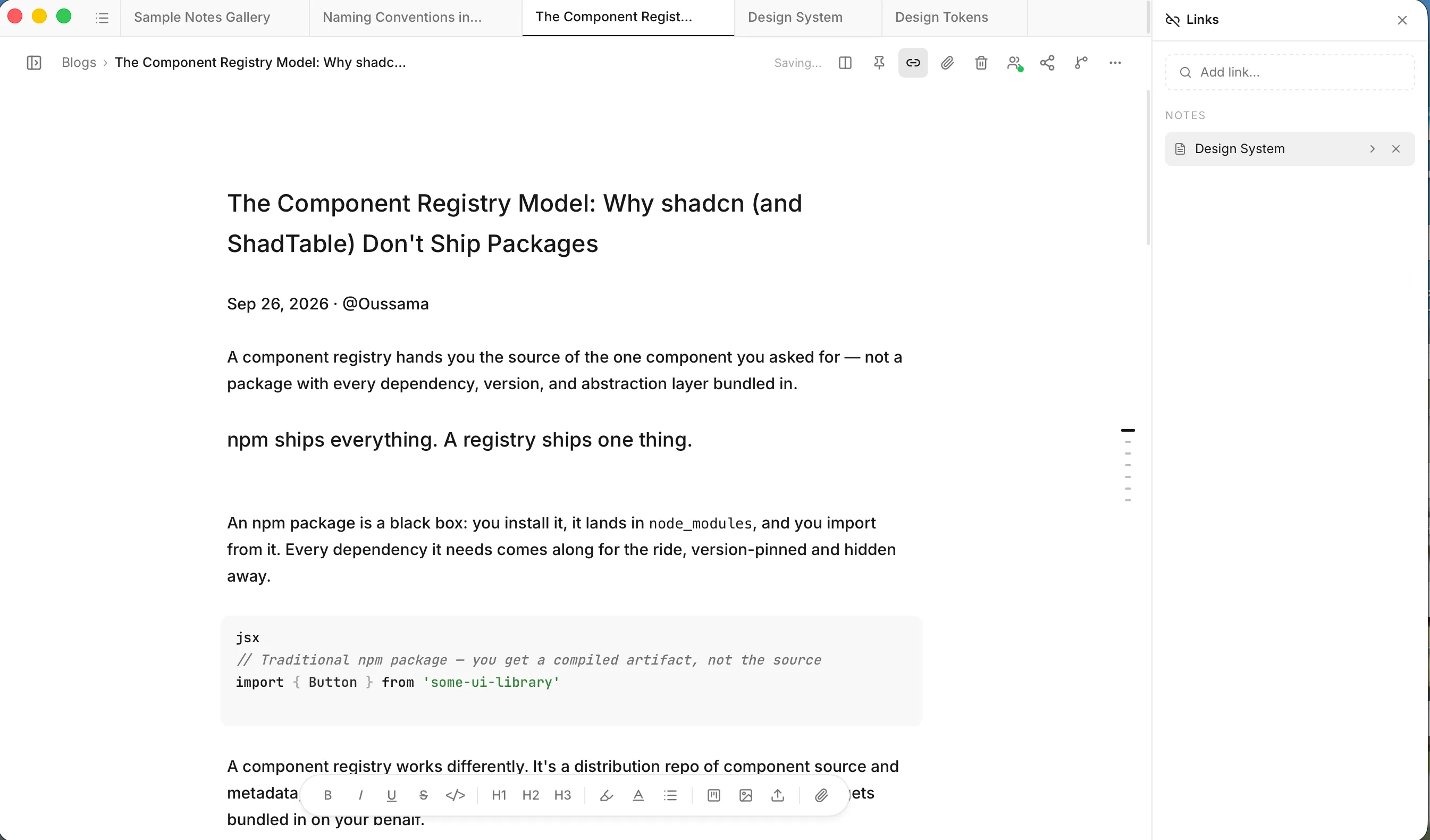
Click the link icon (Links) at the top-right of any note. A panel opens on the right. Click it again, or the close button, to hide it.
Link a note or board
- In the Links panel, click Add link….
- Type in Search notes and boards…. Results are grouped under Notes and Boards.
- Click the one you want. It’s added to the panel.
Your links appear in two lists, Notes and Boards. For each one you can:
- Click its name, or the arrow (Open note or Open board), to jump to it.
- Click Remove link (the ×) to unlink it. This only removes the link; it never deletes the note or board.
If you haven’t added anything yet, the panel says No links yet.
Mention a note while you write
You can also link as you type. Type @ and the start of a note’s title, then pick it from the list. inkwell inserts a link into your text and adds that note to the Links panel automatically.
The link is stored as plain markdown, so it survives in the file:
See [@Weekly planning](note://note-1234567890) for details.Hold ⌘Ctrl and click a mention to open that note.
Link to a board or task from text
From the editor you can also insert a board or task as a live embed or as an inline link. See Boards and tasks.
Where links are stored
The list in the Links panel is kept in the vault’s hidden .inkwell/app.json, not in the note’s frontmatter. Mentions you typed with @ live in the note text itself.