
Sharing and exporting
Export a note as Markdown, HTML or PDF, preview it first, or copy it to the clipboard.
Need to send a note to someone who doesn’t use inkwell? Export it. Your notes are already plain files, so exporting is mostly about getting a polished copy.
Export a note
- Open the note you want to share.
- Click Share note (export) (the share icon) at the top-right of the note.
- Under Export as, choose Markdown, HTML or PDF. The right-hand side previews what you’ll get.
- Save it, print it, or copy it. See below.
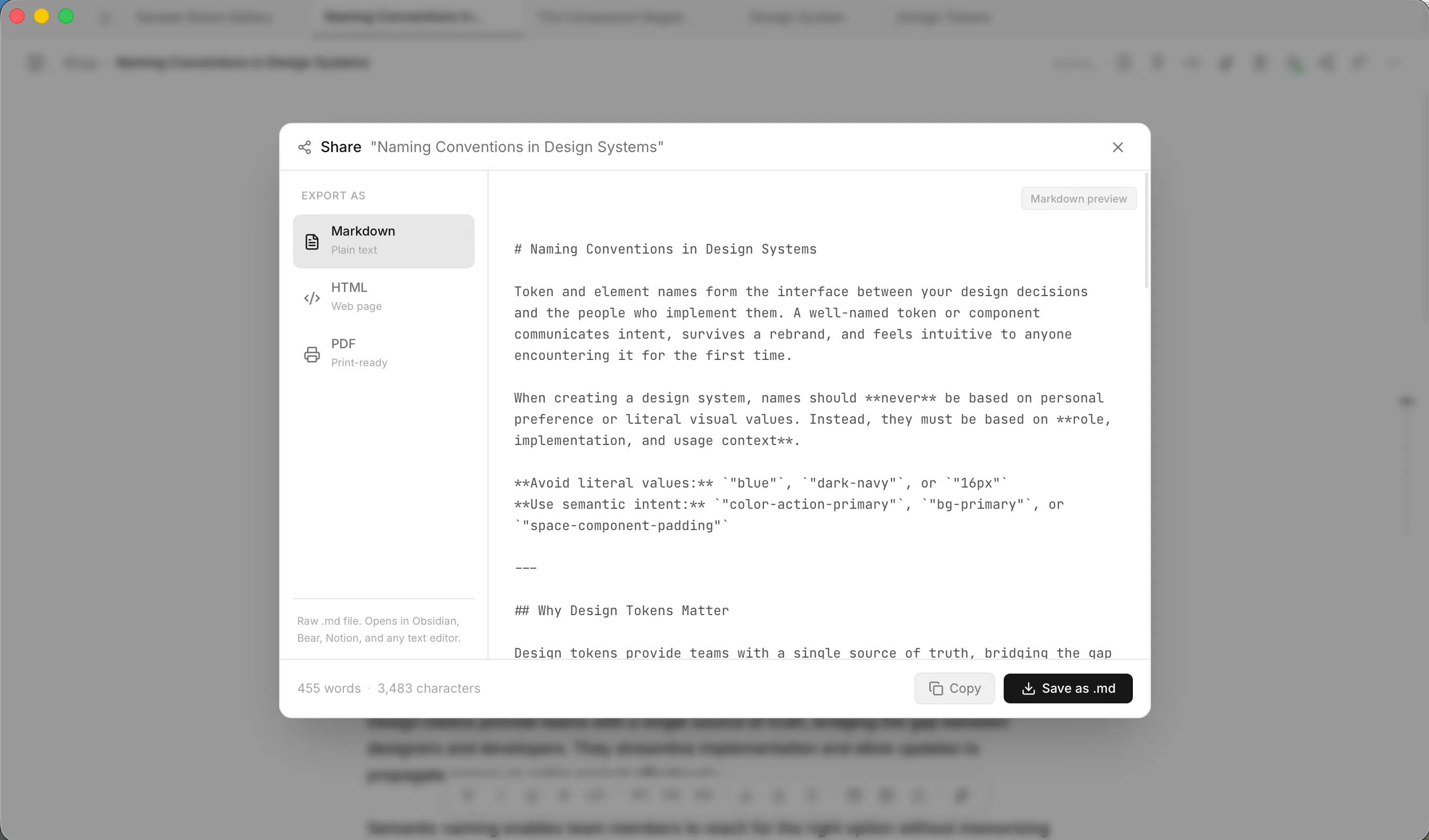
Choose a format
| Format | You get | Good for |
|---|---|---|
| Markdown (plain text) | The raw .md text. It opens in Obsidian, Bear, Notion and any text editor. |
Moving a note to another notes app. |
| HTML (web page) | One self-contained .html file with the styles built in. Share it by email or open it in any browser. |
Sending a nicely formatted copy. |
| PDF (print-ready) | Opens your system’s print window. Choose Save as PDF there. | Printing or sending a fixed document. |
HTML and PDF exports look like your note does in the preview, using your current theme’s colours. Rendered math and syntax-highlighted code carry over. Images, videos and PDFs you embedded in the note are packed into the file, so it still works when you move it elsewhere.
The footer shows the note’s word and character counts.
Save, print or copy
| Format | Buttons |
|---|---|
| Markdown | Save as .md and Copy. |
| HTML | Save as .html and Copy. |
| Print…, and Copy HTML. |
Copy puts the text on your clipboard (for Markdown, the raw note; for HTML, the page’s HTML). The button reads Copied! for a moment.
If you’ve embedded images or files, you’ll see Loading media… for a second while inkwell prepares them.
Sharing with other people
Exporting makes a copy. To work on the same notes together, use real-time collaboration. To publish a note to a GitHub repository, see GitHub sync.