
Getting started
Install inkwell, pick a folder for your notes, and write your first note.
inkwell keeps your notes as ordinary markdown files in a folder you choose. This page takes you from install to your first note in a few minutes.
Install inkwell
inkwell runs on macOS, Windows and Linux. Download the installer for your system from the latest release on GitHub, or from the download section of the home page, which highlights the right one for your computer.
| System | Download |
|---|---|
| macOS (Apple silicon and Intel) | .dmg |
| Windows (64-bit) | .exe installer or .msi |
| Linux (x86_64) | .AppImage, .deb or .rpm |
inkwell checks for new versions in the background. When one is available, an Update available · vX.Y.Z button appears at the bottom of the sidebar. Click it to download and install; the app restarts by itself.
Open inkwell for the first time
On first launch inkwell asks you to choose a folder to store your notes. That folder is called a vault. You have two choices:
- Open Vault – pick a folder you already use. Every
.mdfile inside it shows up as a note. - New Vault – pick a folder to start fresh. inkwell adds a short Welcome to inkwell note in a
getting-startedfolder so the vault isn’t empty.
The picker also lists your Recent vaults, with when you last opened each one. Click one to jump back in. After your first launch, inkwell reopens the vault you used last.
Find your way around
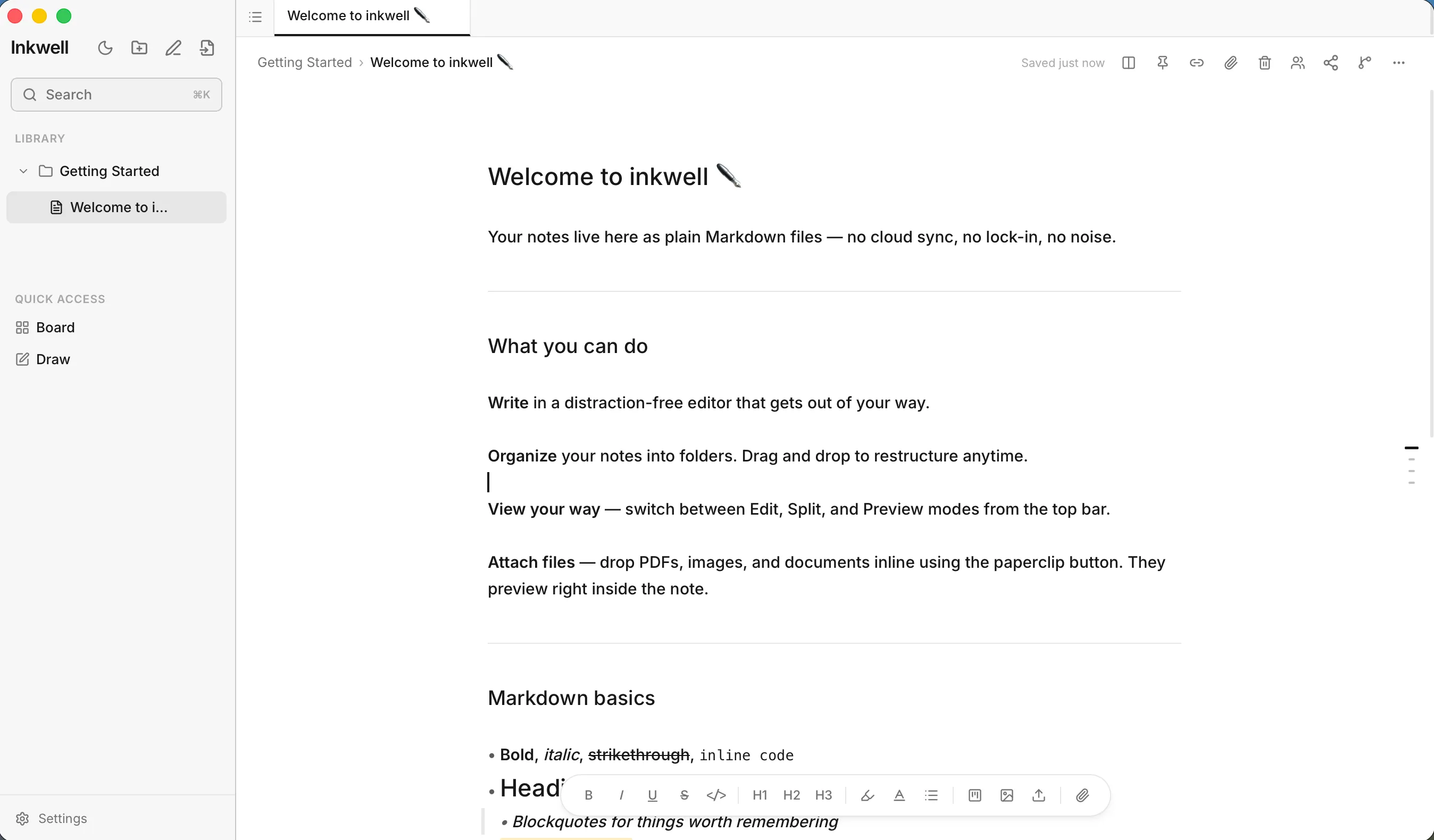
inkwell has three areas, from left to right.
The sidebar holds your library and tools:
- The Inkwell header with buttons to create a New folder, a New note, and to Open file… (⌘OCtrl+O).
- A Search box (⌘KCtrl+K).
- Pinned notes, then your Library: the folders and notes in your vault.
- Quick Access with Board for task boards, Brainstorm for thinking in points, plus Draw if you’ve turned the canvas on in Settings.
- Settings at the very bottom.
The note list shows the notes in whichever folder you picked (or Unfiled for notes at the top level of the vault). Sort them by Date or Name. You can swap the list for tabs, covered in Organising notes.
The editor is where you write. Along the top you’ll see the note’s title, a Saved just now indicator, and buttons for pinning, links, attachments, sharing and more.
Write your first note
- Click New note (the pen icon) at the top of the sidebar. A note called Untitled opens.
- Click the title at the top of the editor and give it a name, or type a
# Headingon the first line. - Start writing. Type
/on an empty line to see formatting commands. - That’s it. inkwell saves as you type, and the indicator reads Saved just now.
Your note is now a real file, for example my-first-note.md, inside your vault folder. Open the folder in Finder or Explorer to see it.
What to read next
- Writing in the editor for formatting,
/commands and the two editor modes. - Organising notes for folders, pinning and drag-and-drop.
- Themes and appearance to make inkwell look the way you like.