
Canvas
Sketch diagrams, flows and mind maps on an infinite canvas, start from templates, and attach notes to shapes.
The canvas is a freehand drawing and diagramming space. Use it for flowcharts, mind maps, wireframes or just thinking out loud.
Turn the canvas on
The canvas is optional and off by default.
- Open Settings at the bottom of the sidebar.
- Go to Features.
- Switch on Canvas.
A Draw entry now appears under Quick Access in the sidebar. Click it to open the canvas.
Tools
Pick a tool from the toolbar, or press its key:
| Tool | Key | Use it to |
|---|---|---|
| Select | V | Click, drag, and resize shapes. |
| Pen | P | Draw freehand. |
| Rectangle | R | Draw boxes. |
| Ellipse | E | Draw ovals and circles. |
| Line | L | Draw straight lines. |
| Arrow | A | Draw arrows to connect shapes. |
| Text | T | Add text anywhere. |
| Sticky note | S | Drop a sticky note. |
Press EscEsc to go back to the Select tool.
Style your shapes
The toolbar controls apply to the shape you’re drawing, or to the shape you have selected.
- Colour. A 12-colour palette sits in the toolbar.
- Fill. Click fill to add or remove a tinted fill. It works on rectangles and ellipses.
- Stroke width. Choose thin (1.5 px), medium (3 px) or thick (6 px).
- Corner radius. For rectangles, a corner control rounds the corners. Click + or − to change it.
- Text. For text, pick a size (12, 16, 24 or 36), a font (Sans, Serif or Mono), and B for bold or I for italic.
To type inside a shape or edit existing text, double-click it. Press ⌘EnterCtrl+Enter or EscEsc to finish.
The toolbar also has Sketchy style, which gives shapes a hand-drawn look (on by default), and Show grid / Hide grid for the dotted background.
Select, move and arrange
| Do this | To |
|---|---|
| Drag on an empty area | Draw a selection box (lasso) around shapes. |
| ⇧Shift + click | Add or remove a shape from the selection. |
| ⌘ACtrl+A | Select everything. |
| Drag a handle | Resize the selected shape. |
| Arrow keys | Nudge by 1 px. Hold ⇧Shift for 10 px. |
| ⌘DCtrl+D | Duplicate. |
| ⌘CCtrl+C, ⌘XCtrl+X, ⌘VCtrl+V | Copy, cut and paste. |
| ⌘GCtrl+G / ⌘⇧GCtrl+Shift+G | Group / ungroup. |
| ⌘⇧]Ctrl+Shift+] / ⌘⇧[Ctrl+Shift+[ | Bring to front / send to back. |
| DeleteDelete | Delete the selection. |
| ⌘ZCtrl+Z / ⌘⇧ZCtrl+Shift+Z | Undo / redo. |
Zoom and pan
- Hold ⌘Ctrl and scroll to zoom, or use the zoom buttons in the toolbar (⌘=Ctrl+= and ⌘-Ctrl+-).
- Hold Space and drag to pan.
- ⇧1Shift+1 zooms to fit everything, ⇧2Shift+2 zooms to fit your selection, and ⇧0Shift+0 resets to 100%.
Start from a template
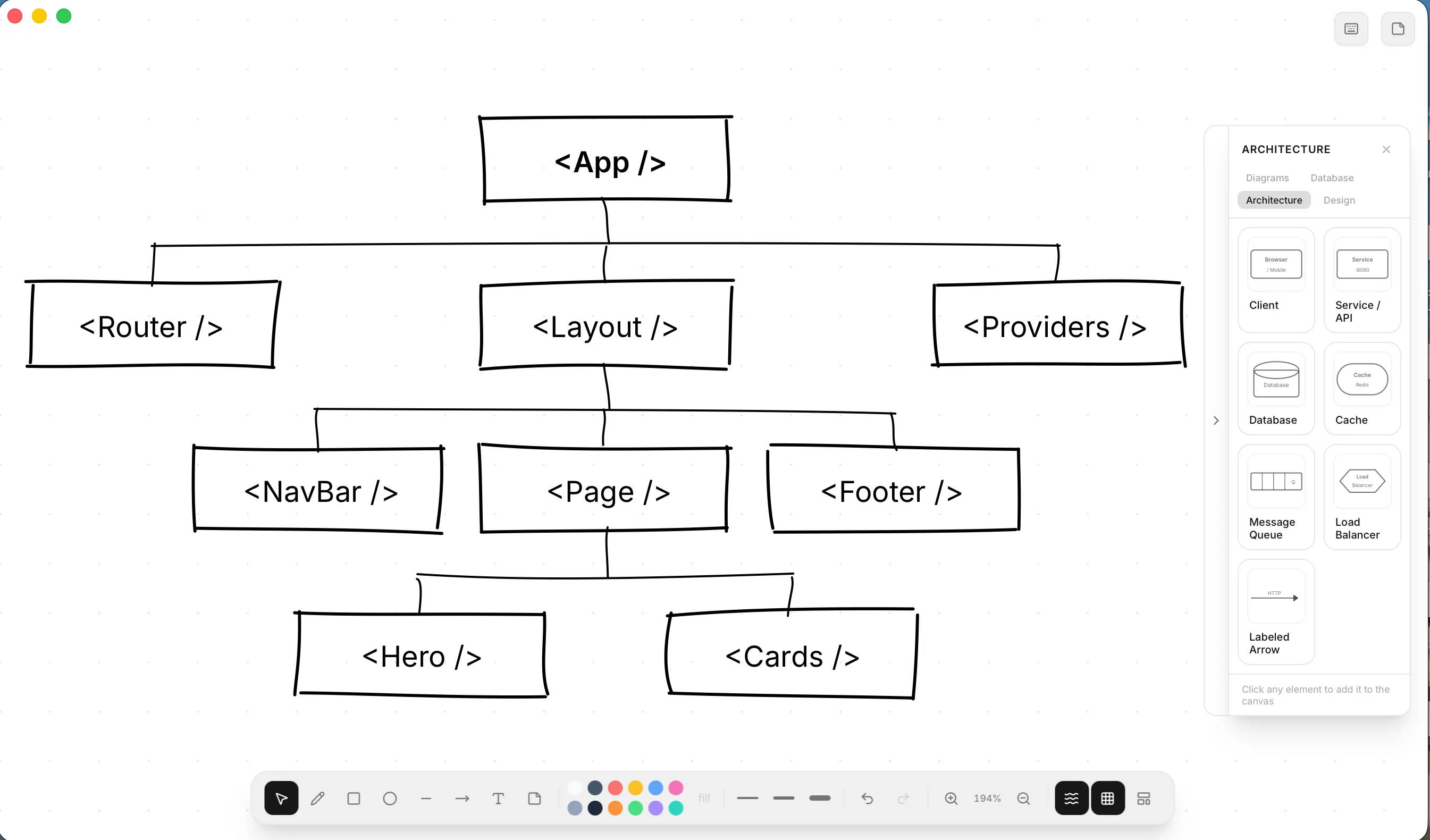
Click Templates in the toolbar and pick a starting point. Templates are grouped by category:
| Category | Templates |
|---|---|
| Diagrams | Flowchart, Mind Map, Org Chart, Sequence, Timeline, Venn Diagram |
| Database | ER Diagram, Table Schema, Data Flow |
| Architecture | System Design, Component Tree, API Flow, Brainstorm |
| Design | UI Frame, Button States, Input Form, Card Component |
After you pick one, a side panel opens with extra building blocks for that category. Click any block to add it to your canvas. Examples: Process, Decision and Swim Lane for diagrams; Entity Table and Junction Table for databases; Service / API, Cache and Load Balancer for architecture; Button, Input Field and Toggle Switch for design. Use the arrow on the panel’s edge to collapse or expand it.
Add notes to a diagram
Select a shape (or several) and click Add note in the toolbar. A notes panel slides in with an Edit tab, where you write markdown, and a Preview tab. Toggle the panel any time with ⌘/Ctrl+/.
For a sticky note, Expand to note turns its text into a full note. From then on, the sticky and the note are independent.
Where your canvas is saved
The canvas saves itself about a second after each change. By default one canvas is shared across every vault and stored in a .inkwell folder in your home directory (canvas.json, with notes in canvas-notes.md).
To keep a canvas inside a specific vault instead, go to Settings → Features → Canvas storage and click Link to a vault…. Click Unlink to go back to the shared canvas.